March 5, 2025
How to create and manage reservation
Learn how to use the Reservation Tool to quickly create new bookings and manage existing ones. You can set guest count, time, table, and notes, update reservations, or mark them as Guest Arrived or No Show.
Step-by-Step Guide
Click the Reservations tab → create a New Reservation.
Select guest count, date, and time.
System shows available tables → choose one.
Add customer details and optional note.
Click Create Reservation → appears on the board.
To edit, click Update (adjust guests, time, table, etc.).
On reservation day:
Guest arrives → mark Customer showed up.
Guest absent → mark as No Show.
Switch between Board, Floor Plan, and Timeline views.
What's next?
 Learn more
Kitchen Monitoring
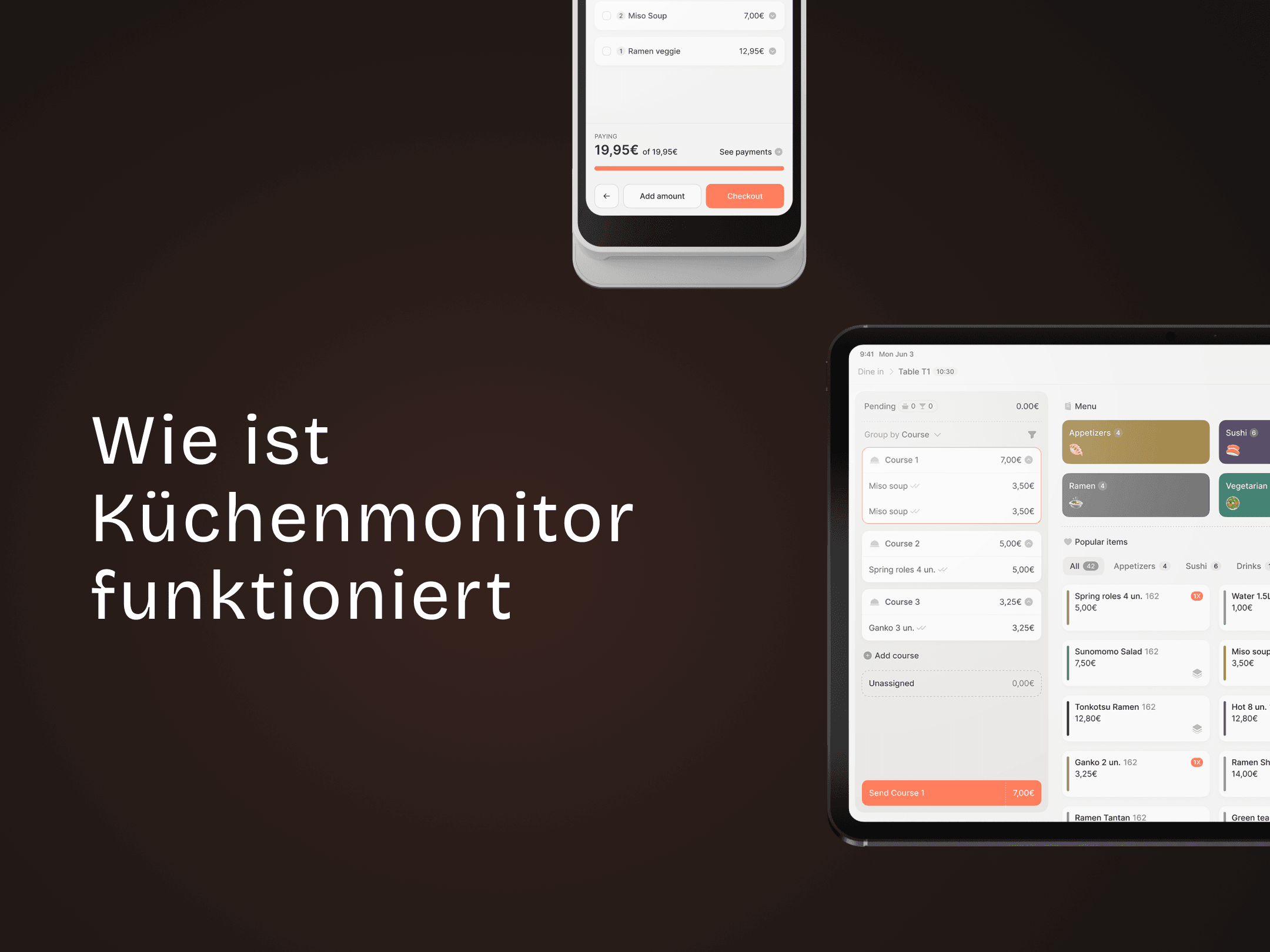
How does the kitchen monitor work
The Kitchen Monitor lets you manage all orders digitally — clear, fast, and organized.
