March 5, 2025
How to Add a Custom Item in the Ordering Flow
Learn how to add a custom item (such as a special request or extra ingredient) directly during the ordering process in allO Go. This feature allows flexible handling of non-menu items.
Step-by-Step Guide
1. Open a Table
Go to an active table in the Dine-In area.
Tap to open the menu view.
2. Add a Custom Item
Select Miscellaneous (Divers) from the menu options.
Choose the category – for example:
Kitchen (for food)
Bar (for drinks)
Enter item details:
Name (e.g. “Extra shot”)
Price
Quantity
Tax rate (depending on item type)
Printer (select where it should print)
Optional note, e.g. “no ice”
3. Confirm and Send
Tap Add to include the item in the order.
You’ll see it appear under the current course (e.g., “Extra shot – no ice”).
Proceed as usual to place or send the order.
💡 Tip:
Use custom items for special requests, off-menu additions, or modifications — they help keep all transactions transparent and itemized.
What's next?
 Learn more
Dine In
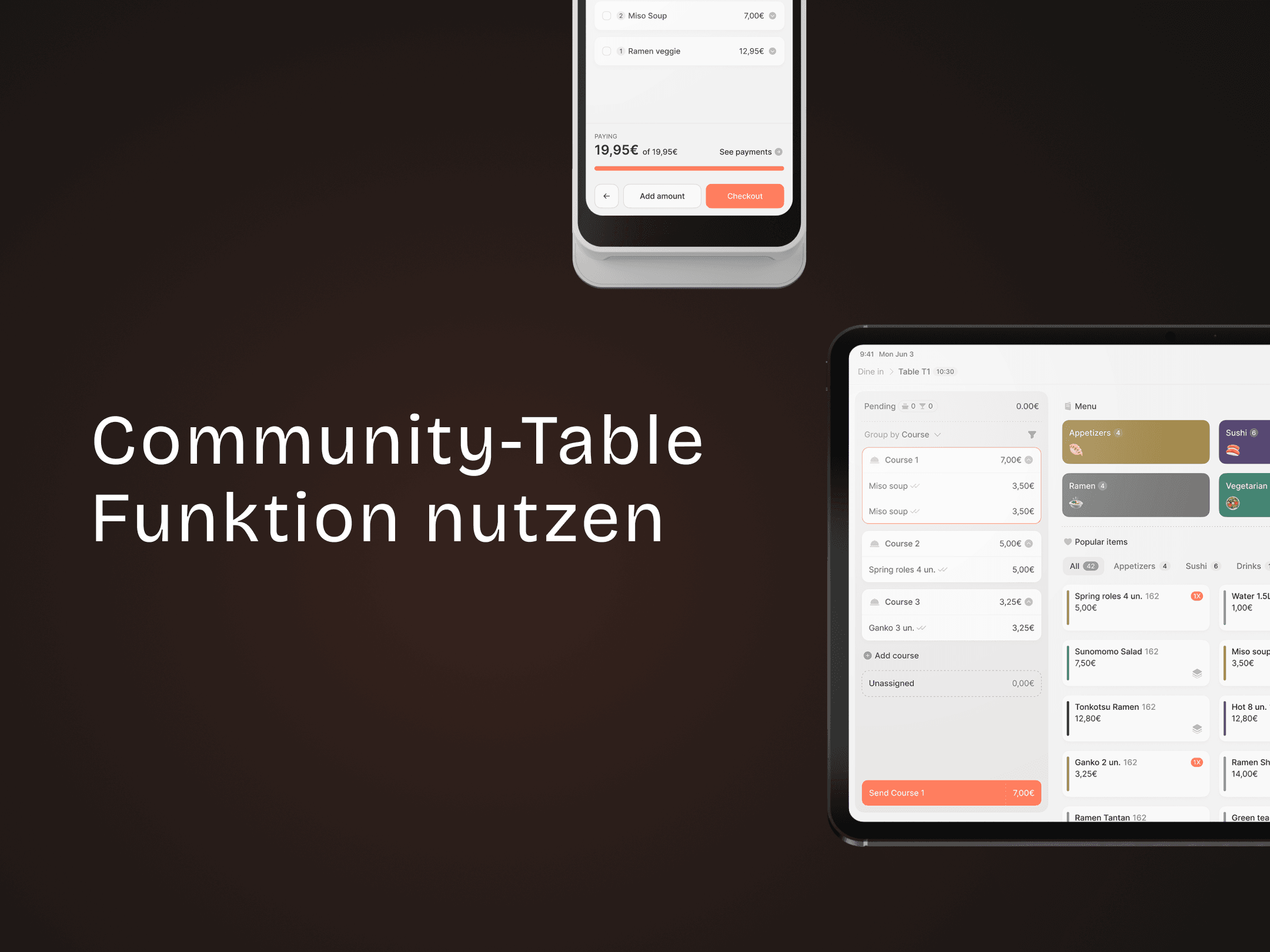
How to Use the Community Table Feature
Split one table into multiple groups for separate orders.
