March 5, 2025
How to Use the Community Table Feature
The Community Table feature allows you to split one physical table into multiple groups — perfect when several parties are seated at the same table. Each group can order and pay separately while sharing the same table space.
Step-by-Step Guide
Access the Table Management
Open your table layout (e.g., Ground Floor or First Floor).
Locate the table you want to split — for example, Table 1.
Normally, you’ll only see Table 1, Table 2, Table 3, etc.
Enable the Community Table Feature
Go to Table Management.
Select the table (e.g., Table 1).
Activate Community Table and set the desired number of groups (e.g., 2).
The system will now show Table 1:01 and Table 1:02 — both representing the same physical table.
Taking Orders for Each Group
Select Table 1:01 to take the first group’s order.
For example, they order two dishes.
Switch to Table 1:02 to take the second group’s order.
They can order different items independently.
Each group’s orders are managed and billed separately.
Managing More Groups
To add additional parties, open a new sub-table (e.g., Table 1:03, Table 1:04, etc.).
You can create up to 10 groups per table.
A small icon on the table view shows when multiple groups are active.
💡 Tip:
Use the Community Table feature in shared seating areas or large communal tables — it helps staff manage service efficiently while keeping orders separated.
What's next?
 Learn more
Dine In
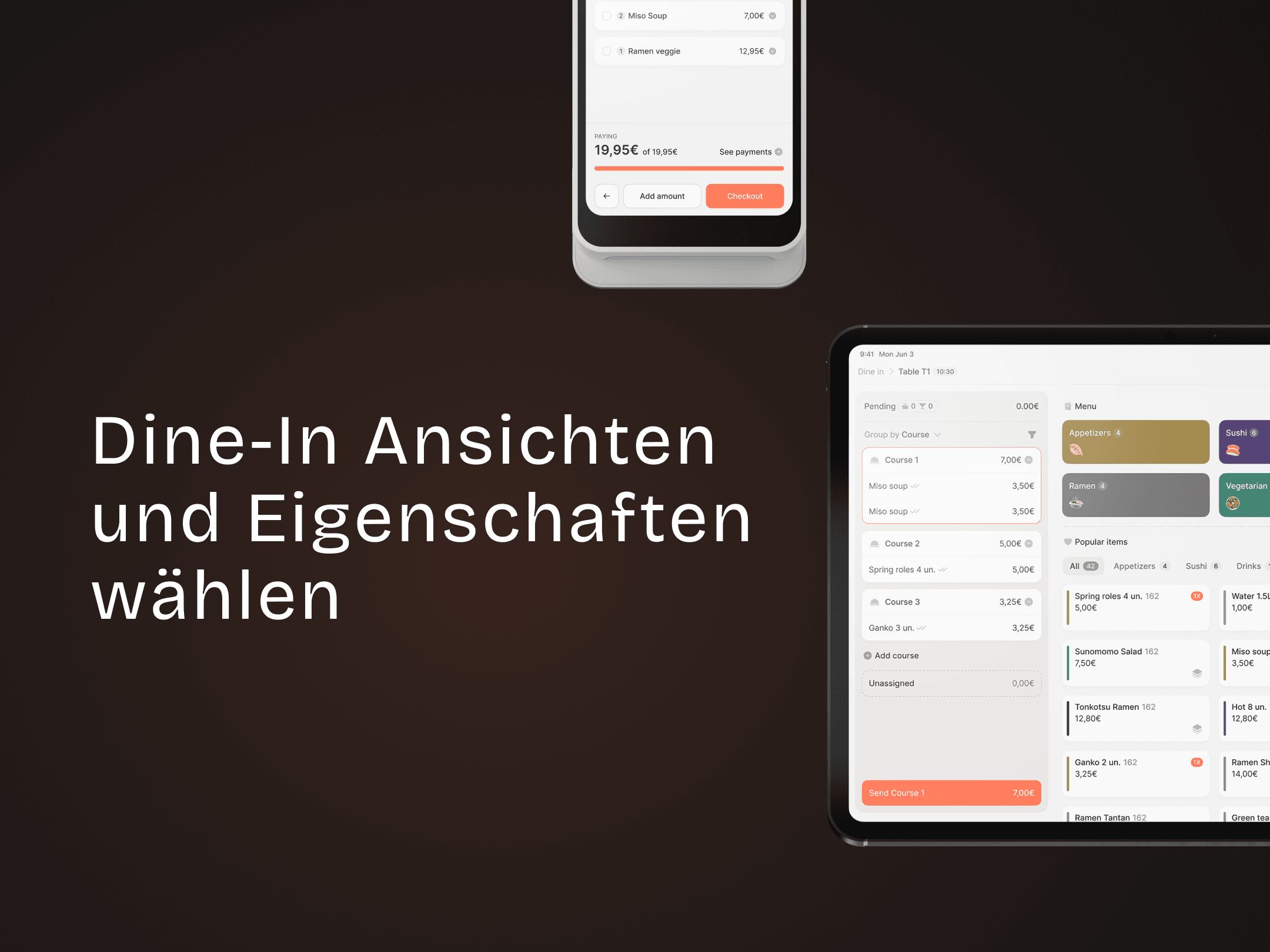
Understanding Dine-In Views and Properties
Customize Dine-In layouts and visible table details.
