March 5, 2025
How to Cancel or Move an Item/Table
Learn how to cancel or move items and entire tables directly on your allO Go device.
This function helps correct orders that were sent to the kitchen or bar by mistake.
Step-by-Step Guide
Cancelling an Item
Open the table containing the order.
In the menu view, select the item to cancel (e.g., a wrongly ordered drink).
Tap Cancel, choose a reason from the list or enter a custom note.
If more than one quantity exists, adjust the number of items to cancel.
Confirm Cancel – the item will be marked as crossed out in the order.
Moving Items or Entire Orders
Open the table you want to move from.
Tap More → Order Details → Move Table.
Choose:
Entire order – move everything to another table, or
Selected items – choose specific dishes or drinks to move.
Select the target table (e.g., Table 21) and confirm.
The moved items will now appear under the new table’s order.
💡 Tip:
Use cancellation reasons for clear reporting, and always double-check the target table before confirming a move.
What's next?
 Learn more
Dine In
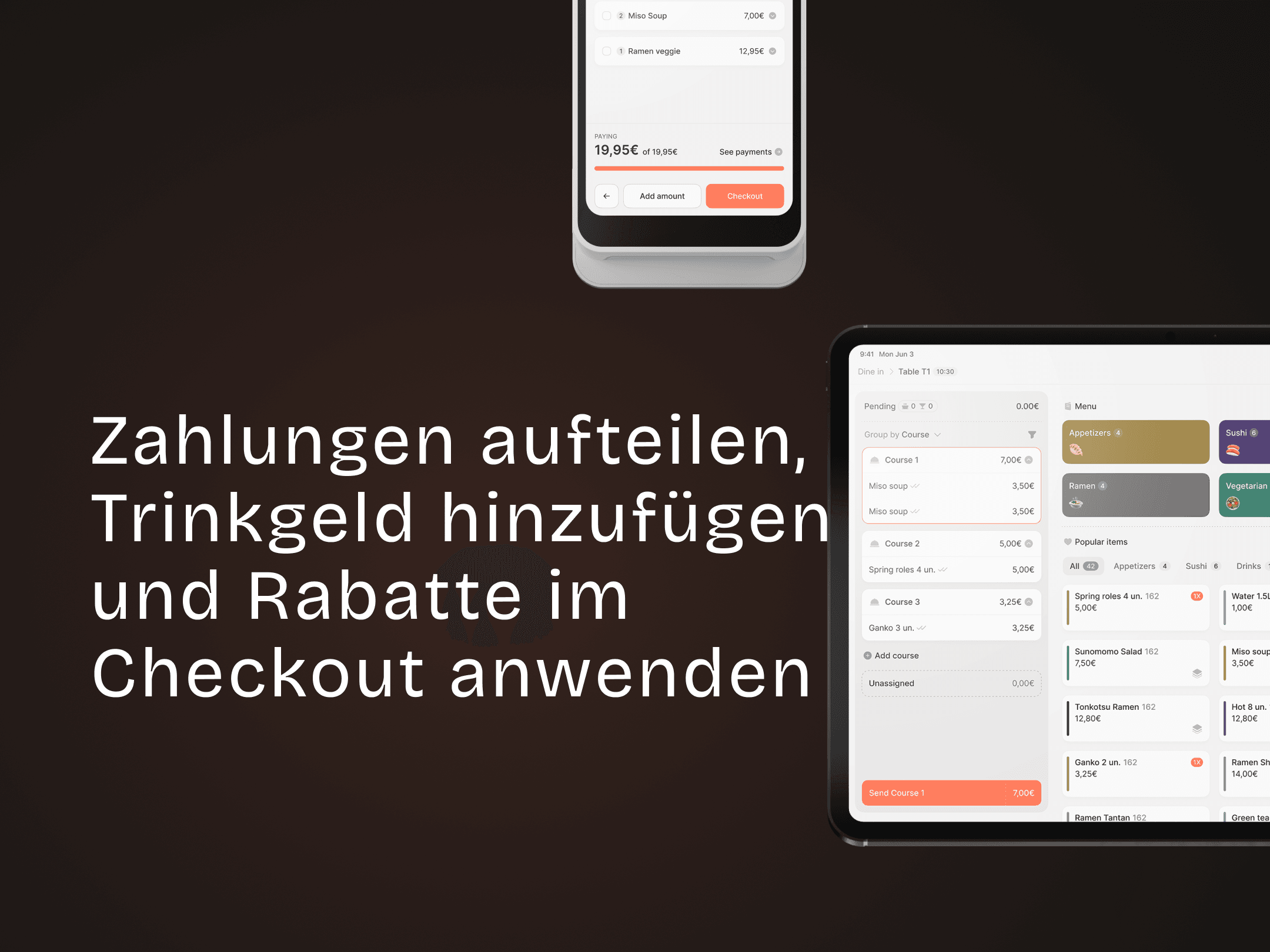
How to Split Payments, Add Tips, and Apply Discounts at Checkout
Split bills, add tips, and apply discounts easily in checkout.
