March 5, 2025
How to Split Payments, Add Tips, and Apply Discounts at Checkout
Learn how to split payments, add tips, and apply discounts directly in the checkout process on your allO Go device.
This helps ensure accurate payments and smooth transactions for guests.
Step-by-Step Guide
Splitting Payments
Open an active table and tap Pay.
Choose how to split the payment:
By item – select specific dishes or drinks.
Evenly – divide the bill equally among guests.
By amount – enter a custom payment amount.
Select the payment method (e.g., Cash, Card, Invoice).
Adding a Tip
After selecting the payment method, choose Add Tip.
Either:
Select a preset tip amount, or
Enter a custom amount (e.g., rounding €10.90 up to €12).
Confirm with Pay €12 in cash (or corresponding method).
Applying Discounts
In checkout, select the items to discount.
Tap Add Discount or Promotion.
Choose the discount type (e.g., 10%) and enter the verification code if required.
Confirm to apply — the discounted amount (e.g., €2.79 off a €27.89 bill) will be shown automatically.
💡 Tip:
Use percentage discounts for flexible offers and always verify discount codes to ensure authorization.
What's next?
 Learn more
Dine In
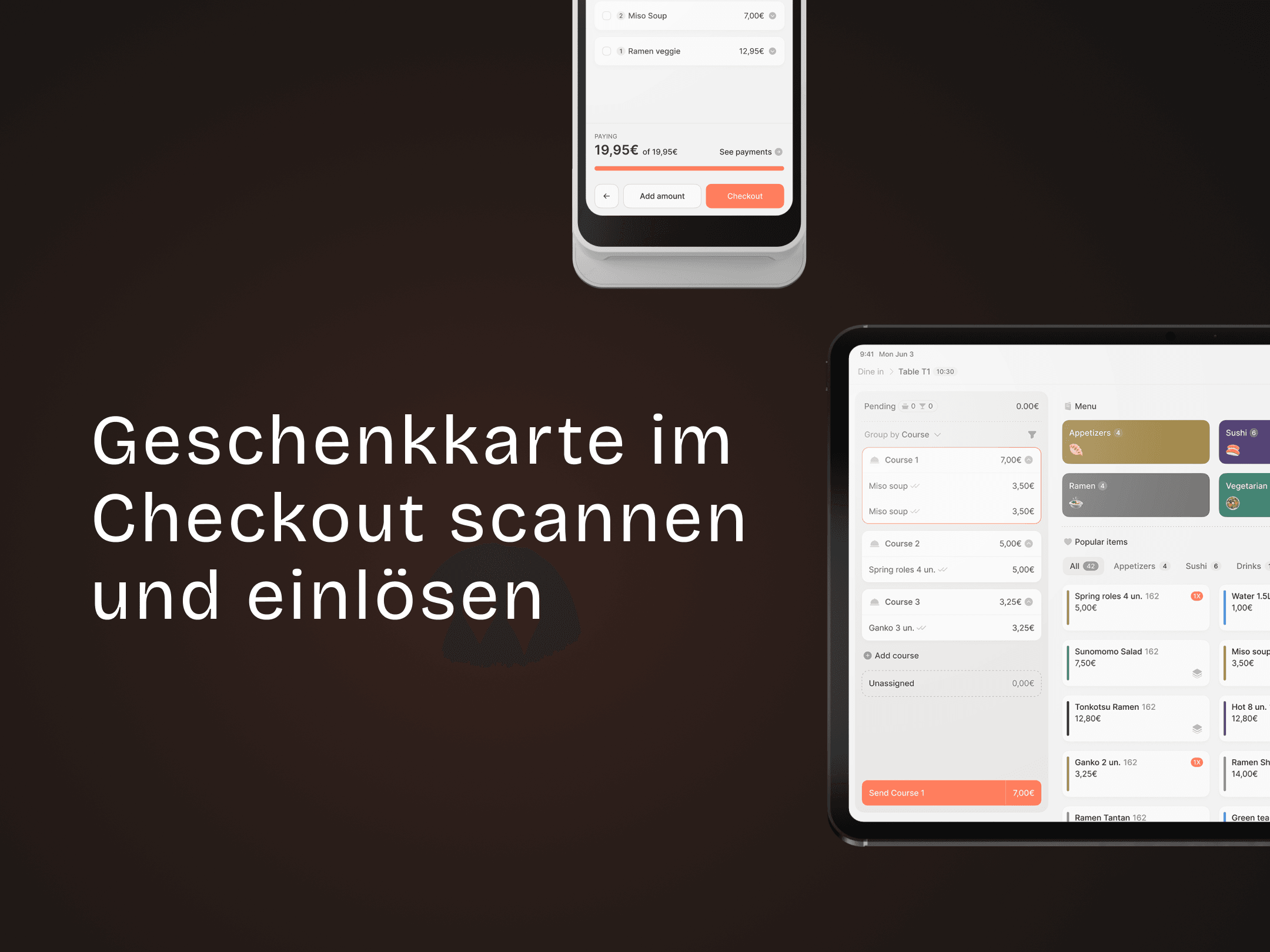
How to Scan and Redeem a Gift Card at Checkout
Scan and apply a customer’s gift card during checkout.
