March 5, 2025
How to Place an Order on allO Go
Learn how to manage the dine-in order flow directly on the allO Go device — including placing, cancelling, and transferring orders between tables.
Step-by-Step Guide
Placing an Order
On the allO Go home screen, open the Dine In view.
Select a table from the room layout.
Choose food and drinks from the menu — they appear in Pending Orders at the bottom.
Tap Pending Orders → Order to send them to the kitchen and bar.
Cancelling Items
Open the table where the order was placed.
Tap the Order Summary area at the bottom.
Select the item you want to cancel.
Choose a preset cancellation reason or enter a custom note.
The cancelled item appears crossed out in the checkout view.
Moving Orders Between Tables
Go to the table with the current order.
Tap More → Order Details → More → Move Order/Table.
Choose to move the entire order or only specific items.
Select the target table (e.g., Table 24) and confirm.
The selected items are now transferred to the new table.
Cancelling an Entire Order
Open the table with the active order.
Tap More → Cancel Order.
Confirm the cancellation — all items (pending or served) will be voided.
The table becomes free and ready for a new order.
💡 Tip:
Use cancellation reasons for tracking and accountability — all actions are logged in your system history.
What's next?
 Learn more
Dine In
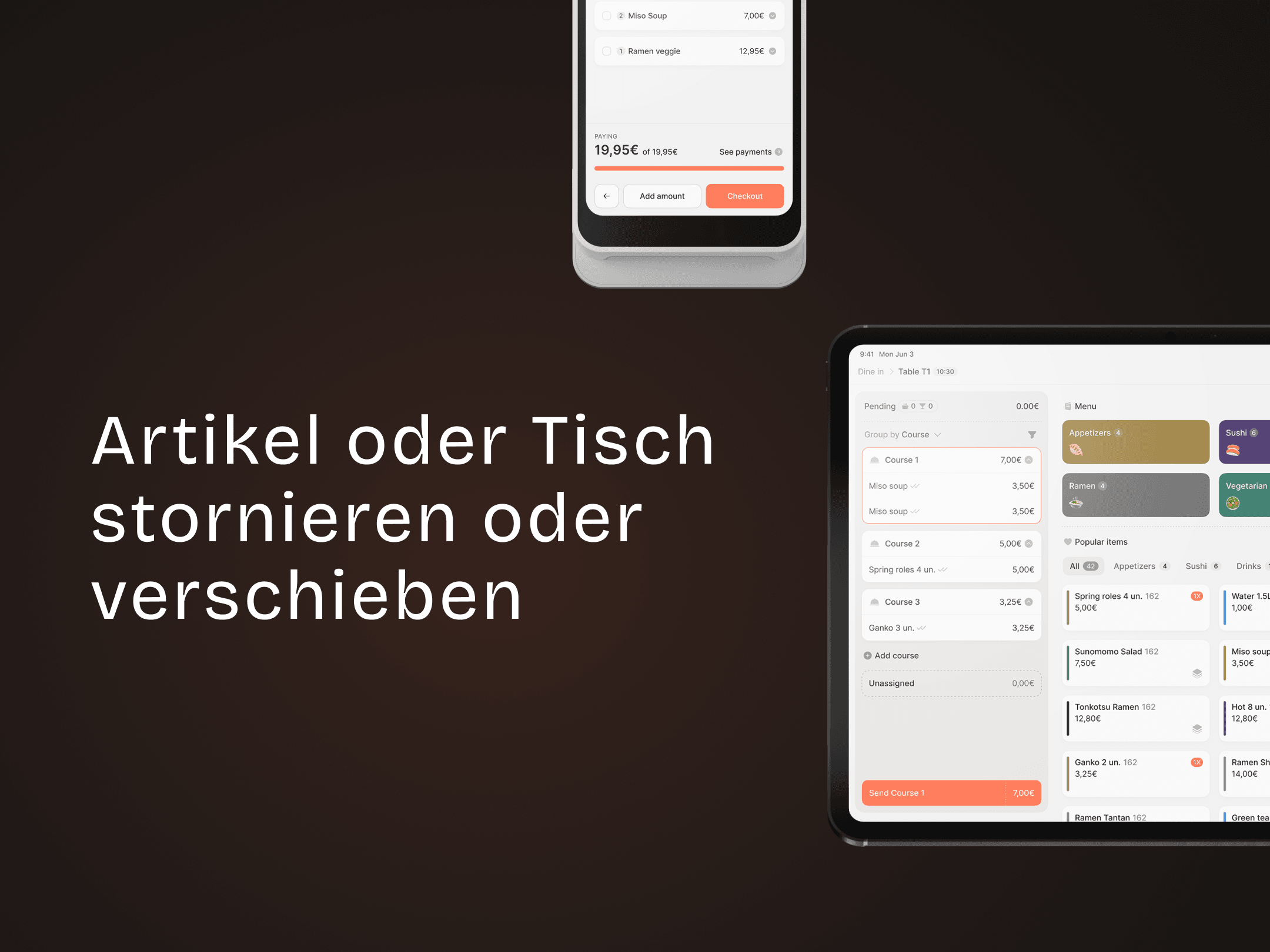
How to Cancel or Move an Item/Table
Cancel or move items and tables easily on allO Go.
