March 5, 2025
Receipt Types – No Receipt, Standard, Business, PDF
Learn about the different receipt types available at checkout and how to select or configure them as the default option in your allO Go system.
Step-by-Step Guide
Opening Receipt Options
Go to an active table and tap Pay.
At the bottom of the payment screen, select your receipt type.
Types of Receipts
No Receipt – no receipt is printed.
Standard Receipt – a regular printed customer receipt.
Business Receipt (Hospitality Receipt) – includes business meal information for tax purposes.
PDF Receipt – sent directly to the customer’s email address.
Sending a PDF Receipt
Select PDF Receipt during checkout.
Enter the guest’s email address when prompted.
Tap Done – the system will send the PDF receipt automatically.
Setting a Default Receipt Type
Go to Settings → Restaurant Settings → Configuration → Receipt Settings.
Choose which receipt type should appear by default (e.g., No Receipt, Business Receipt).
Save changes — the selected type will now be preselected at checkout.
💡 Tip:
PDF and business receipts help digitalize and simplify accounting for your guests and business customers.
What's next?
 Learn more
Dine In
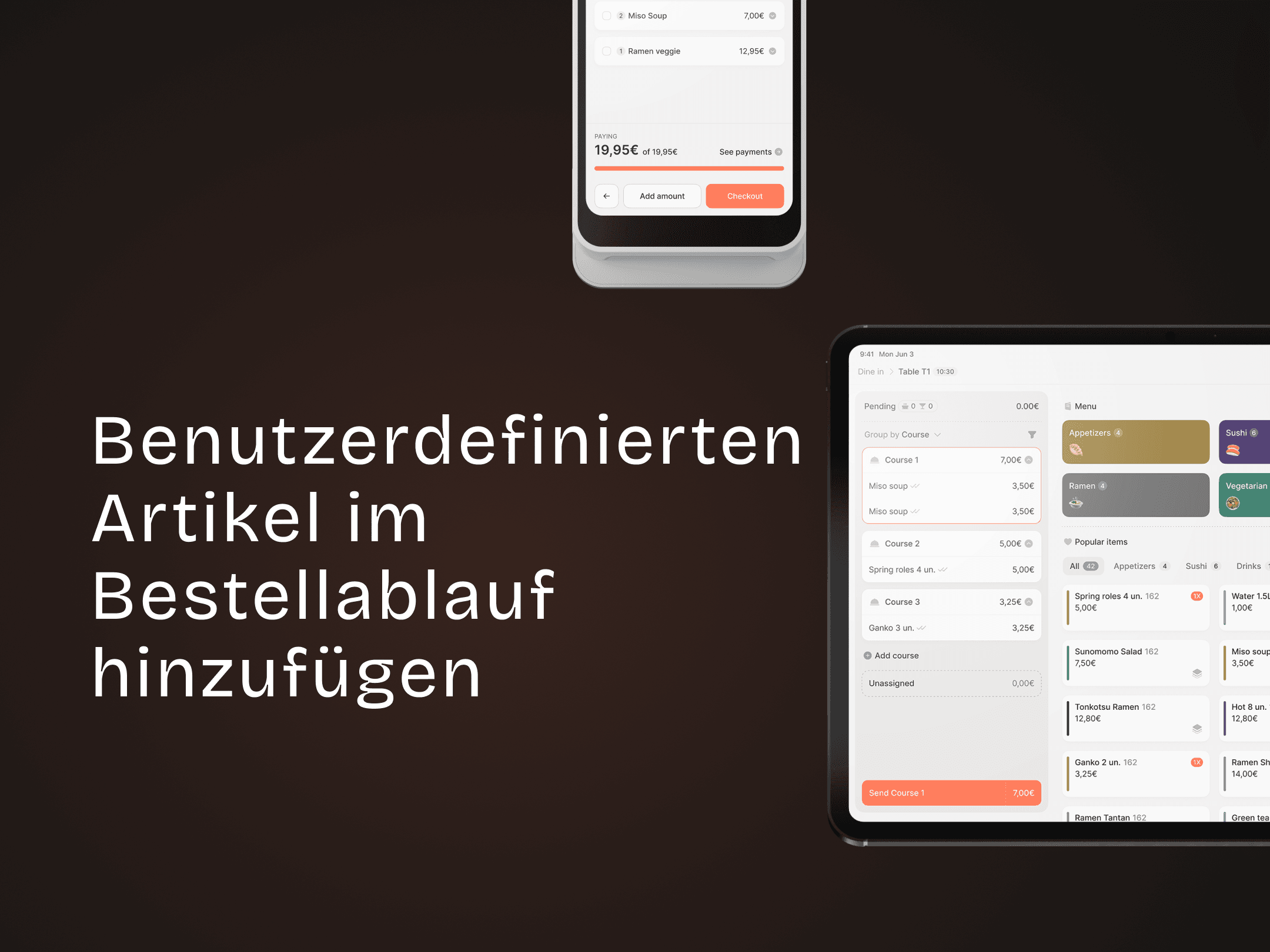
How to Add a Custom Item in the Ordering Flow
Add off-menu items or special requests during ordering.
