Configuration – Express
In Express mode, you can assign pagers or tables to quick orders.
This helps organize orders for dine-in and takeaway, ensuring accurate tracking and faster service.
Step-by-Step Guide
Open Express Configuration
Go to Settings → Restaurant Settings → Configuration.
Find the section Express Terminal.
Enable Pager and Table Options
Choose whether to display Pager assignment, Table selection, or both.
You can enable both to allow assigning either a pager or a table for each Express order.
Create a New Express Order
Start a new Express order (e.g., Eat in).
Add items to the order and proceed to Pay.
Assign a Pager or Table
When prompted, enter a Pager number (e.g., 10 or 11).
Alternatively, select a Table from the table plan.
You can also assign both if needed.
Complete the Payment and Print Receipt
Pay the full amount (e.g., cash).
Print the receipt — it will show both the assigned Pager number and Table number.
💡 Tip:
Assigning pagers and tables helps your staff quickly identify where each Express order belongs, improving service speed and organization.
What’s next?
 Learn more
Team Management
Team Management
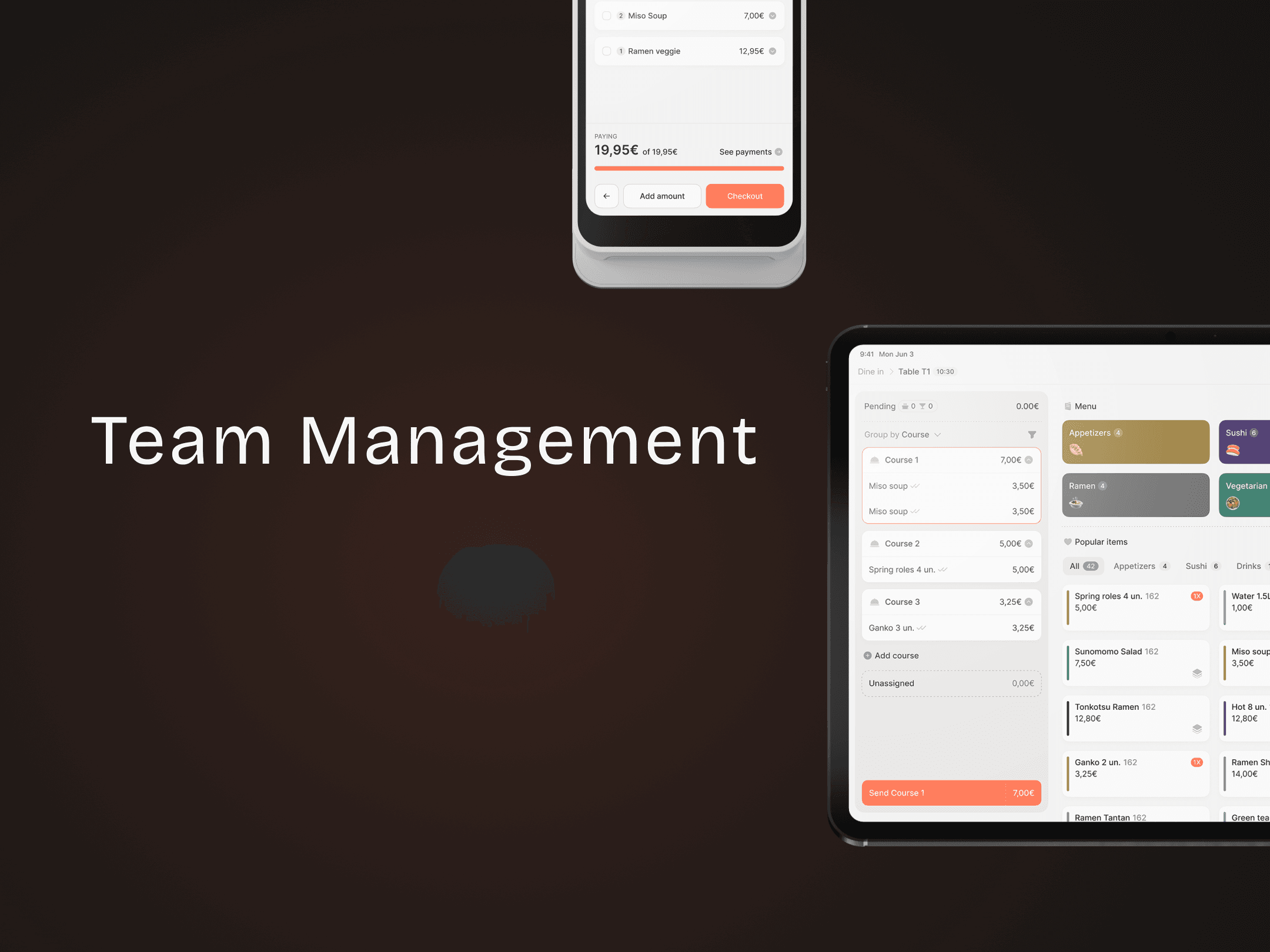
Add users, assign roles, and manage access permissions.
