Configuration – Printer Settings
In printer settings, you can define how and where your orders are printed — by category, by item, or specifically for extras and options.
These settings help organize printouts for efficient kitchen and counter workflows.
Step-by-Step Guide
Open Printer Settings
Go to Menu → Settings → Restaurant Settings → Configuration.
Scroll to the Printer Settings section.
General Printer Options
Enable or disable the cancellation printout (print or suppress voided items).
Choose whether to print terminal receipts automatically or not.
Category Printing – What It Does and How It Works
Turn on Menu Printer Active.
This allows assigning a printer for each category in the menu.
Go to the Menu Editor, select a category, and assign a printer — for example, all “Starters” print to Kitchen Printer 1.
Item Printing – What It Does and How It Works
Enable Print by Menu Item.
This lets you assign printers on an item level.
In the Menu Editor, open an item and choose the printer under Printer Selection.
Useful for specific dishes that go to different kitchen stations.
Extras and Options Printing – What It Does and How It Works
Activate Extras and Options Printer.
Allows assigning a separate printer for add-ons, sides, or modifiers.
You can send extras and options to different printers or separate tickets — ideal for kitchens with multiple prep stations.
💡 Tip:
Separate printer assignments by category, item, or extras make order routing clear and reduce mistakes in busy kitchens.
What’s next?
 Learn more
Express
Configuration – Express
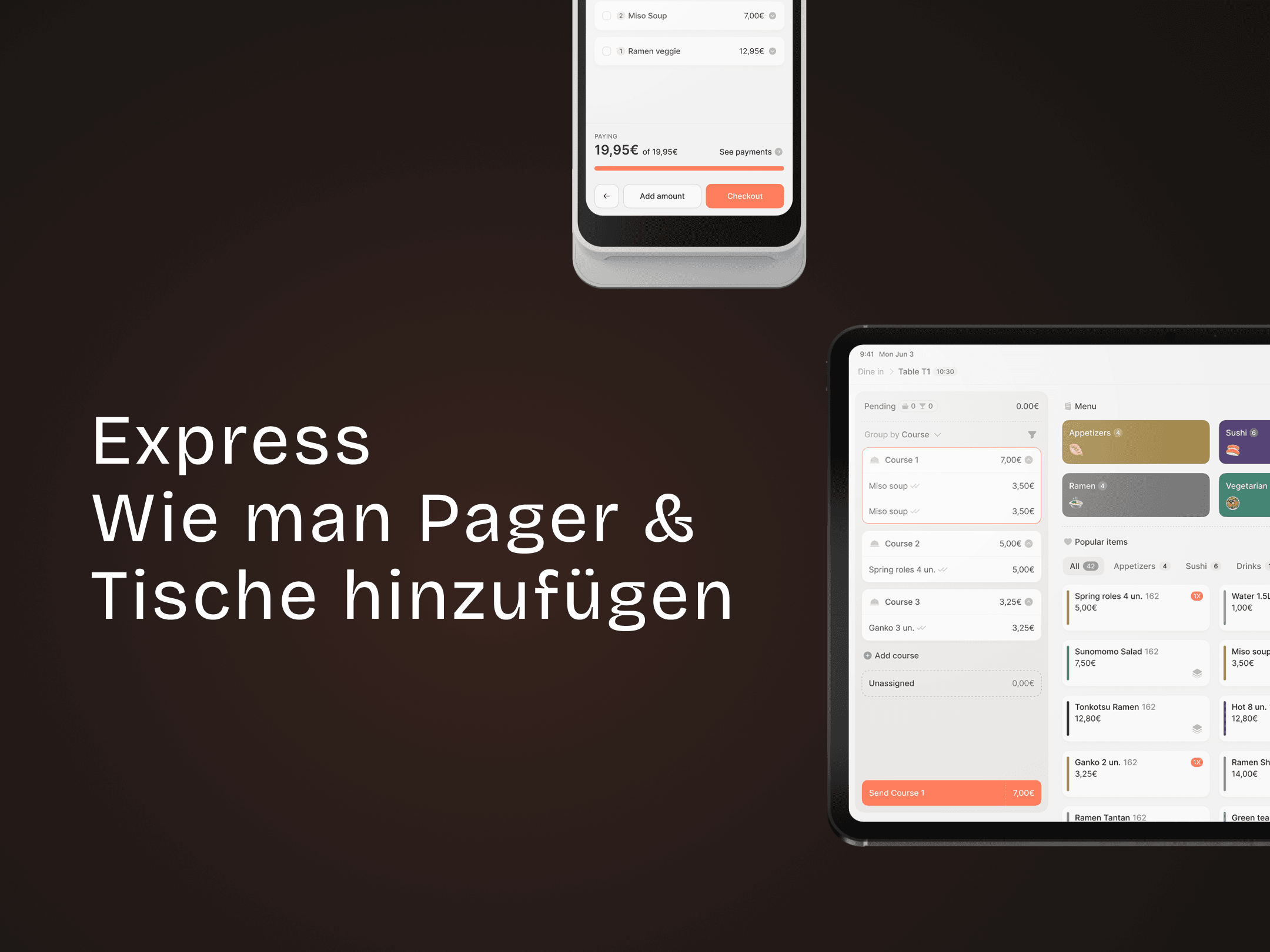
Assign pagers and tables to express orders for faster service.
