Discount verification: what it is and how it works
This section explains how to apply a discount for a table that requires a verification code. This ensures that only authorized staff can give discounts. It also shows where to configure or modify this verification code.
Step-by-Step Guide
In the Pay section, click “Add Discount or Promotion.”
Select the desired discount or promotion (e.g., 5%).
Enter the stored code (e.g., 1111) to apply the discount.
To set up or change the verification code:
Go to Management → Restaurant Settings → Configuration → Discount Verification.
Enter or update the code (e.g., change to 1234).
Save the settings.
Check out the resources below
What’s next?
 Learn more
Checkout
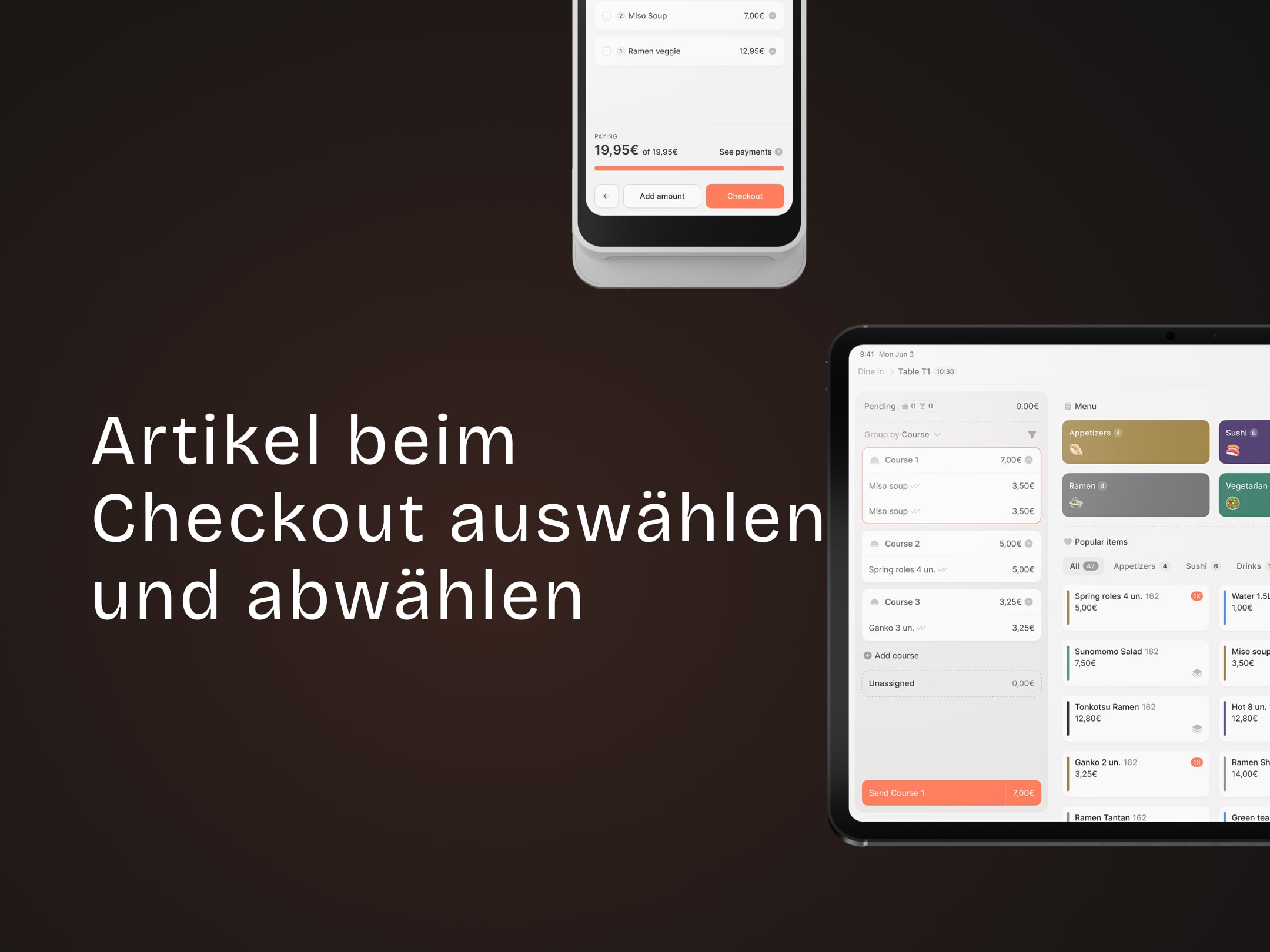
How to select and unselect items at checkout
how to configure the printing of final receipts for split payments and adjust the default item selection behavior at check-out
