How to hide paid items during split payment
This section explains how to adjust the configuration to either display or hide items that have already been paid for. This helps keep the payment screen clear and focused only on unpaid items.
Step-by-Step Guide
Go to Management → Restaurant Settings → Configuration.
Find the option “Hide Paid Items.”
When this option is turned off, paid items remain visible — they appear grayed out but still listed.
Example: After paying for two items, they are shown in gray within the payment screen but remain visible.
When this option is turned on, paid items are hidden.
Example: After paying for two items, the payment screen will only display the remaining unpaid items, while the paid ones are no longer visible.
What’s next?
 Learn more
Menu Settings
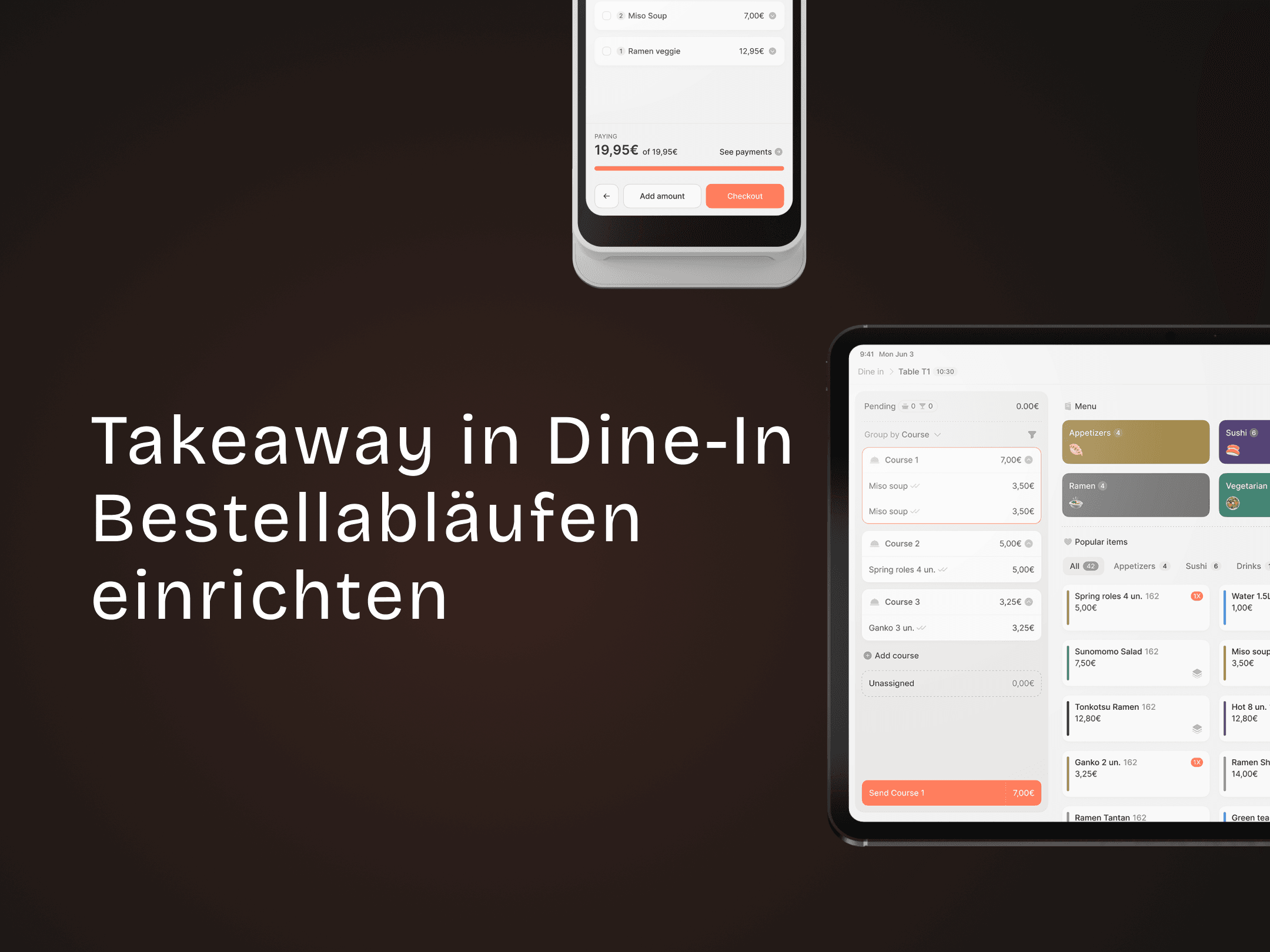
How to set takeaway in dine in ordering flows
Add Takeaway items to Dine-In orders
