How to set takeaway in dine in ordering flows
This feature allows you to add Takeaway items directly to an active table order. It’s useful when guests want to take something with them after dining, without creating a separate Takeaway order.
Step-by-Step Guide
Open the menu in the top left corner.
Go to Settings → Restaurant Settings → Configuration → Menu Settings.
Enable the option Takeaway in Dine-In orders.
Open an active table in the Dine-In section.
Select the Order Mode: Takeaway.
Add the desired items (they will be marked as Takeaway).
Proceed to Checkout – both Dine-In and Takeaway items will be shown separately.
Print the receipt – items are clearly labeled as Dine-In or Takeaway.
💡 Tip: Taxes are applied correctly depending on Dine-In vs. Takeaway.
What’s next?
 Learn more
Menu Settings
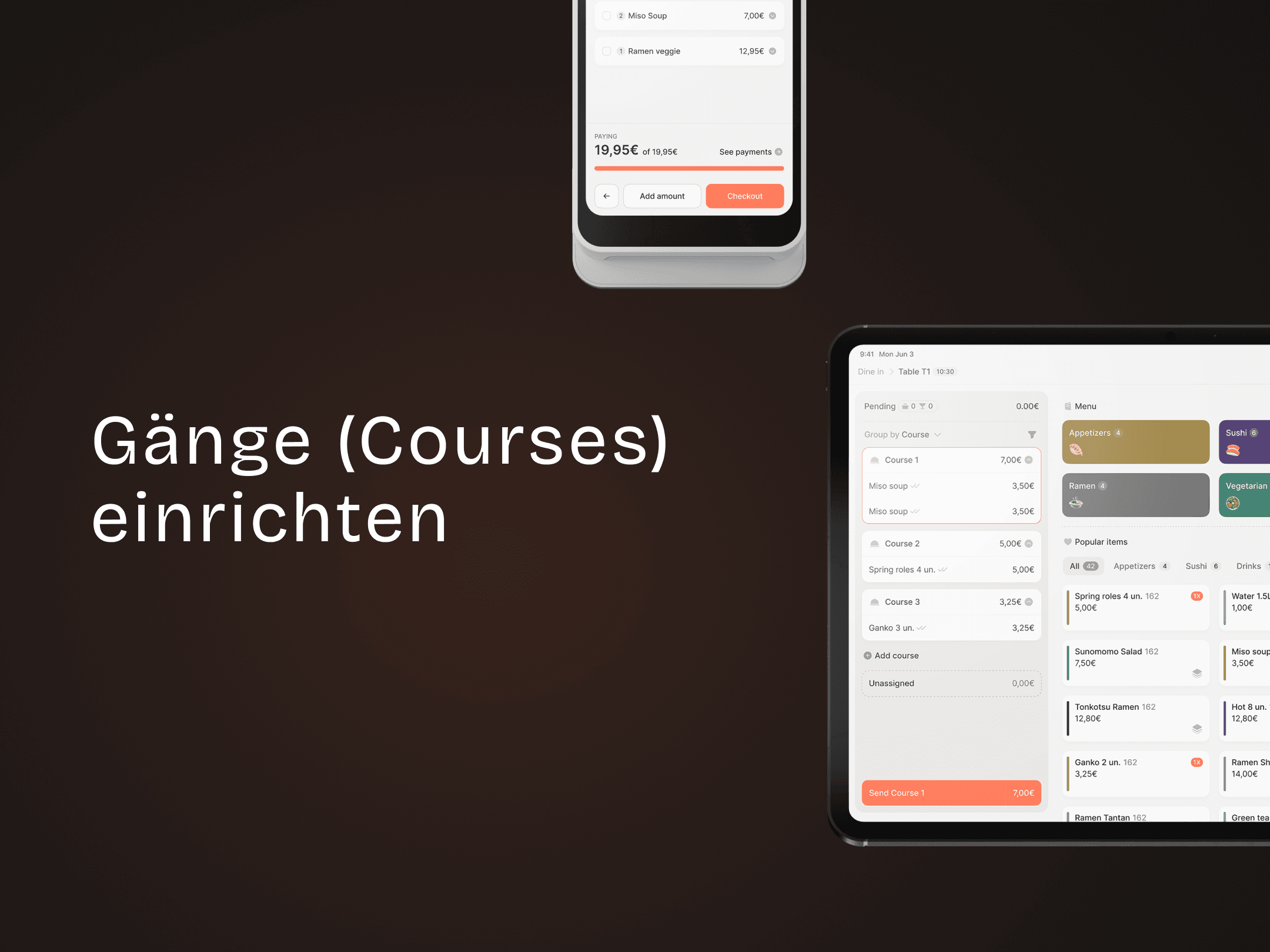
How to set up courses
Create courses and assign orders
