How to set up courses
The course function allows you to define starters, mains, desserts, or any other custom courses and assign items to them. This helps structure orders clearly, and with printer settings, you can even print separate tickets for each course.
Step-by-Step Guide
Open the menu in the top left corner.
Go to Settings → Restaurant Settings → Configuration → Menu Settings.
Select the Courses tab.
Create courses, e.g.:
Starter
Main course
Dessert
(you can add as many as needed and translate them into other languages such as English or Chinese)
Open the menu, select a table, and assign items to the chosen courses.
In printer settings, enable Split by courses:
Each course will be printed on a separate ticket.
On mobile, the course selection appears at the bottom of the order screen, just like switching modes.
💡 Tip: Separate tickets per course help the kitchen process orders in a structured and timely manner.
What’s next?
 Learn more
Menu Settings
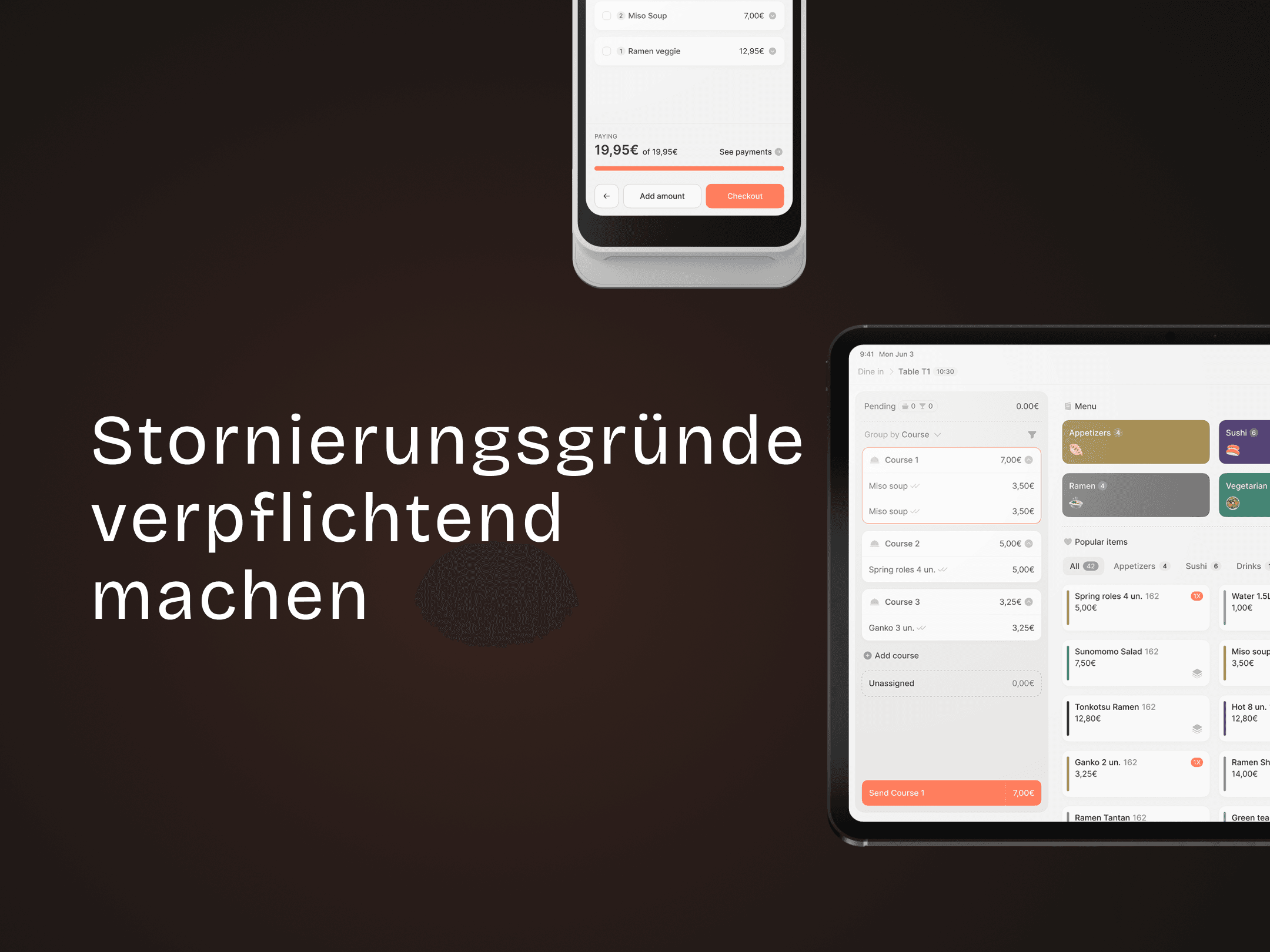
Requiring cancellation reasons
Require reasons for all cancellations
