How to Split Payments
Split payments allow guests to pay their bill by items, by equal parts, or by amount. This feature is useful when multiple guests want to share or divide their payment.
Step-by-Step Guide
Enable Split Payment Option
Go to Settings → Restaurant Settings → Configuration.
Turn on Allow Split Payment.
If this option is off, partial payments are not possible.
Create and Open an Order
Place an order as usual.
Tap Pay — all items are selected by default.
Choose How to Split
You can split the bill in several ways:
By item – select one or more specific items.
Equally – divide the total evenly among 2, 3, or more people.
By amount – enter a specific payment amount (e.g., €10).
Complete the Split Payment
Once payment has started using one method (by item, equal, or amount), the rest of the bill must be paid using the same payment type.
💡 Tip:
Split payments make checkout smoother and faster for groups.
What’s next?
 Learn more
Checkout
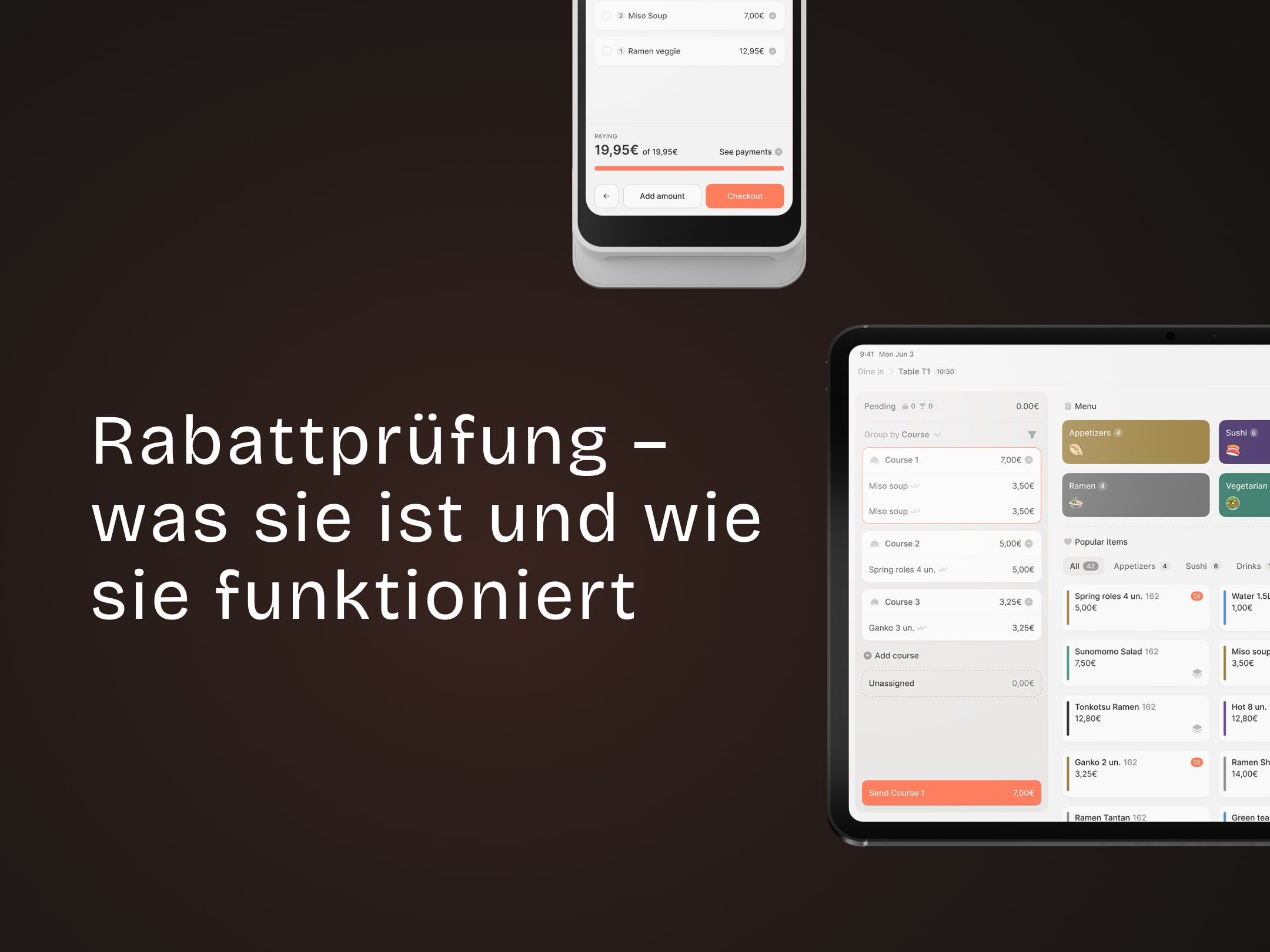
Discount verification: what it is and how it works
Set up and use discount verification in the restaurant system
